Signature Process Guide
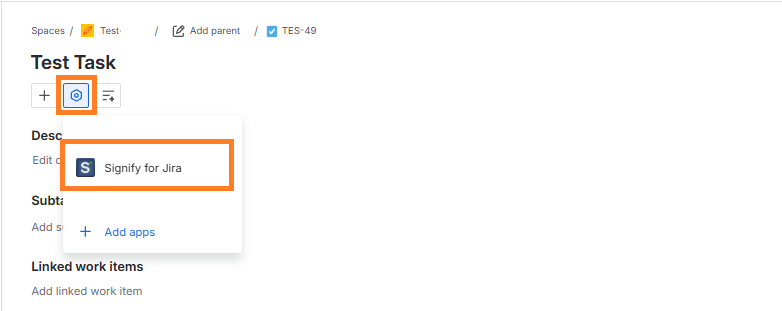
To start the signature process directly from “Jira” click View App Actions and select Signify for Jira:
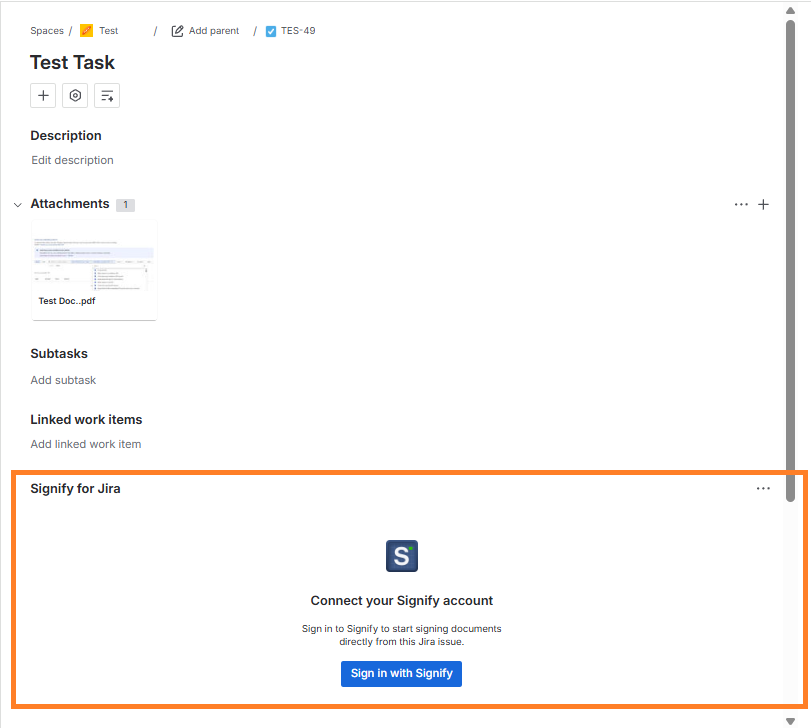
The system will display a “Signify Sign In” prompt. If you are not logged into Signify, you will see the relevant button. Click “Sign in with Signify”:
Click “Continue” on the pop-up message to proceed to the “Signify” page and complete the authentication process. Click it to proceed:
You will then be redirected to the Signify page, where you need to sign in and select the appropriate Team.
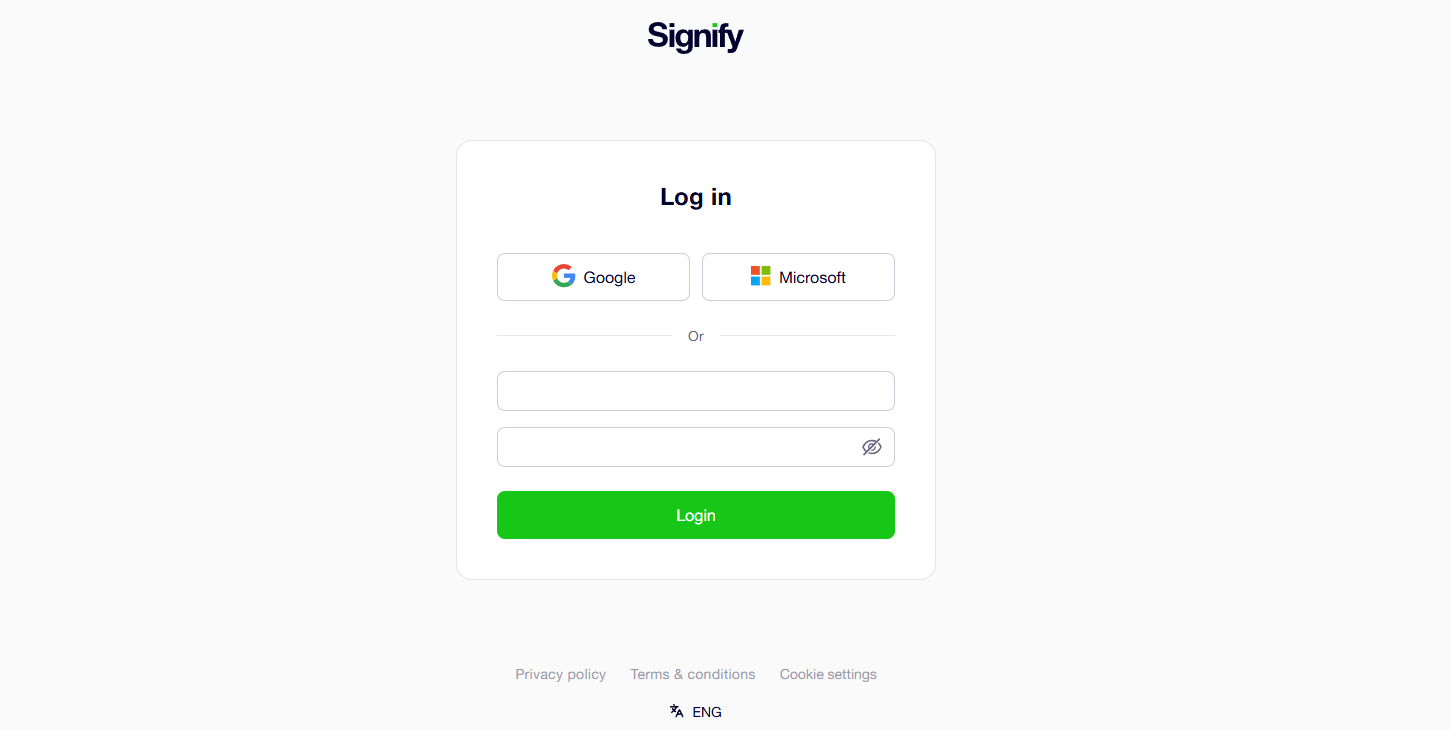
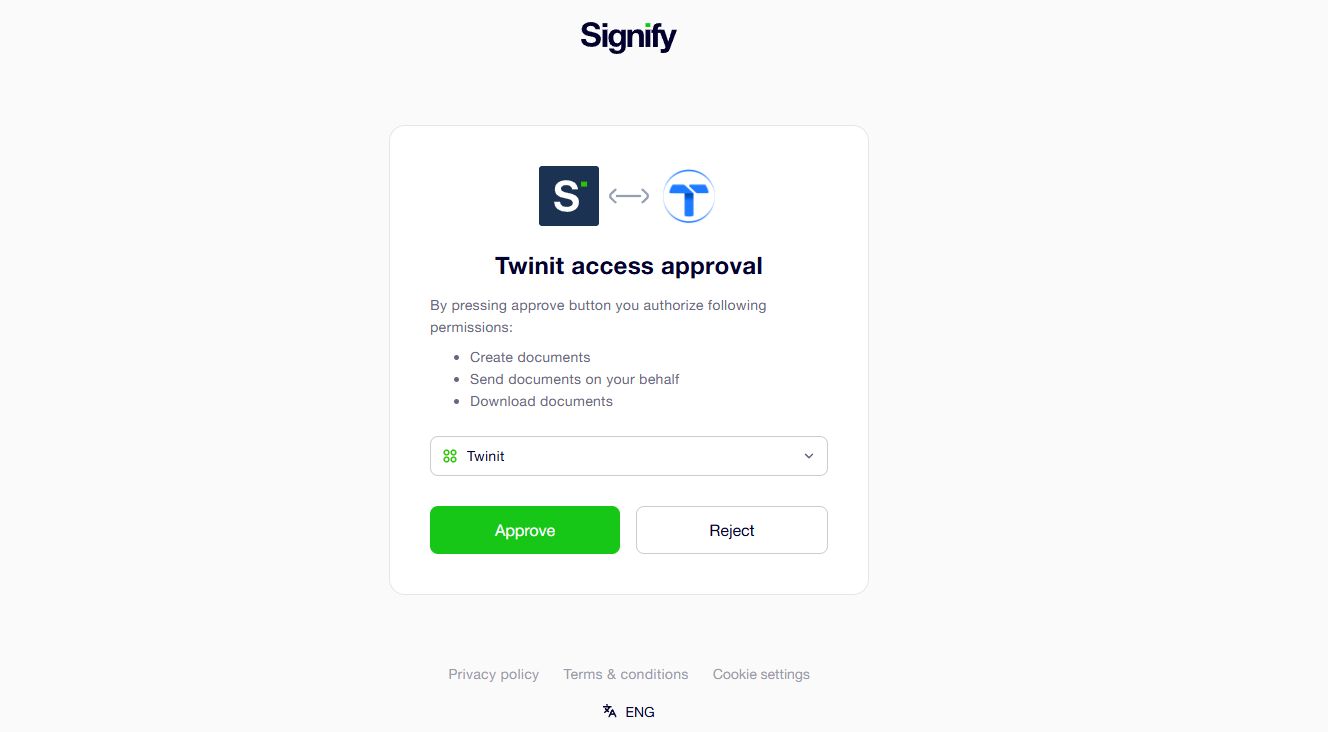
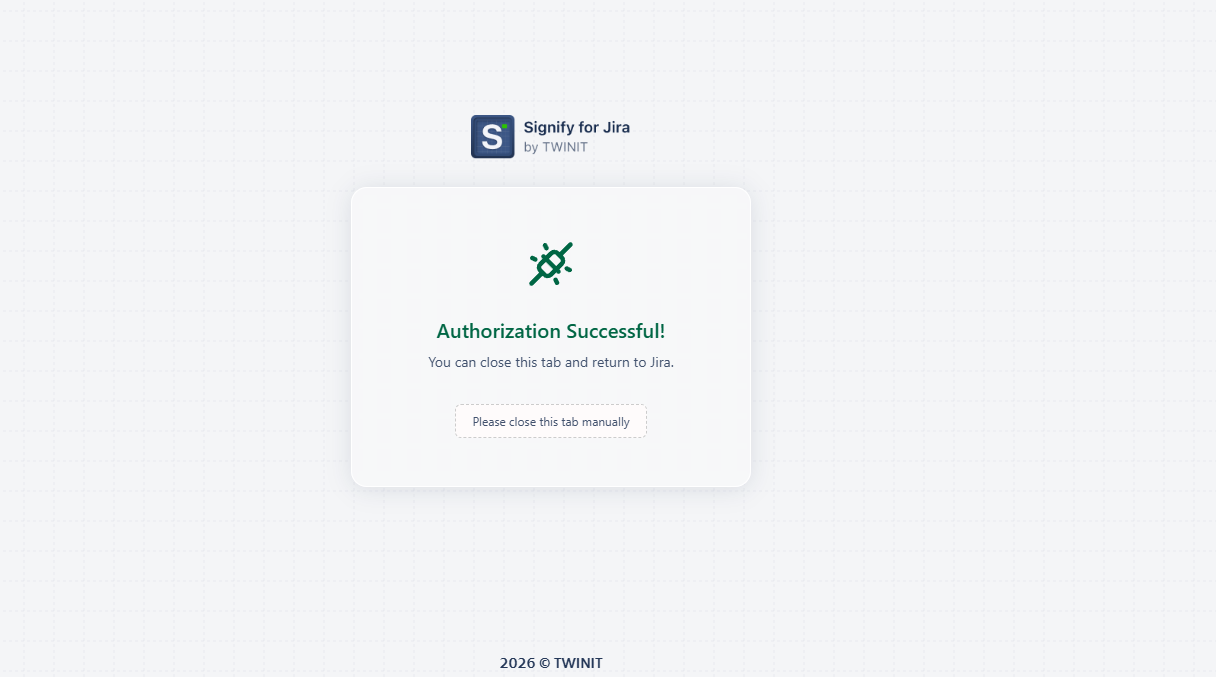
After successful authentication, a confirmation message appears. Close this thread manually and return to the Jira page.
When you return to Jira, you will see the following view:
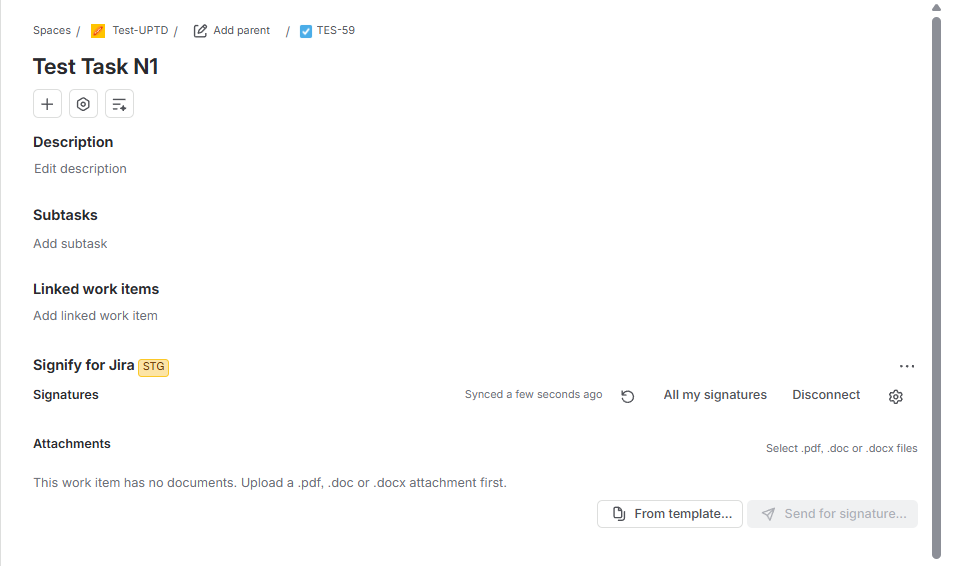
There are two ways to send a document for signing: Uploading a file or using a Template.
If you have not uploaded a file yet, the corresponding button will be disabled. If you have synced templates in the app’s configuration settings, you can send a document directly from a template by clicking the corresponding button.
Signature Process By Uploading a File
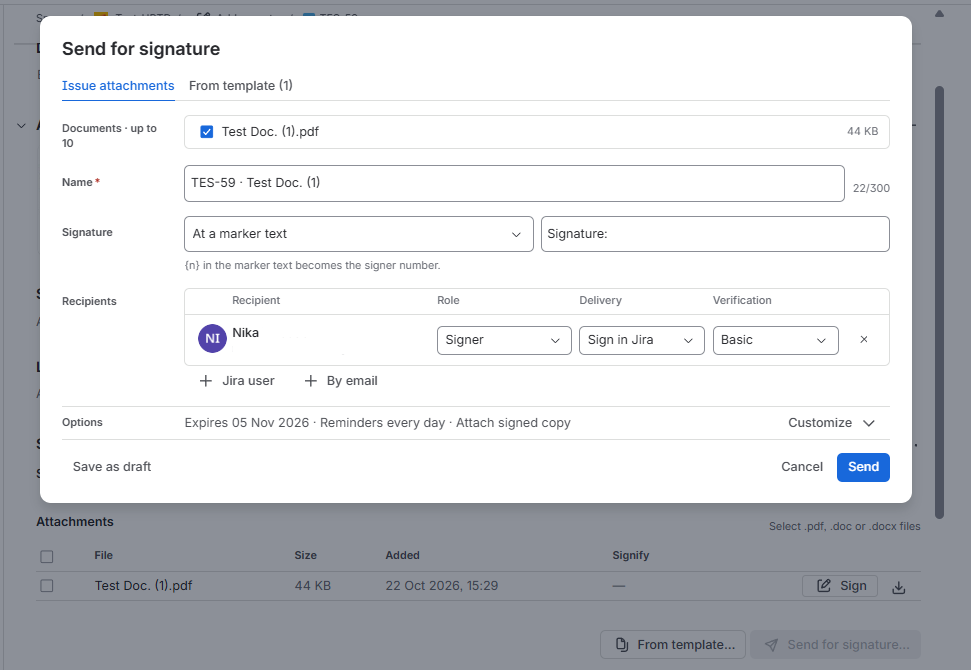
Upload a file and click the “Sign” button next to the document, an information pop-up will appear where you will see following fields:
- Name - File Name
- Signature - Choose a signature place
- Recipients - Add as many recipients as you need with the relevant information
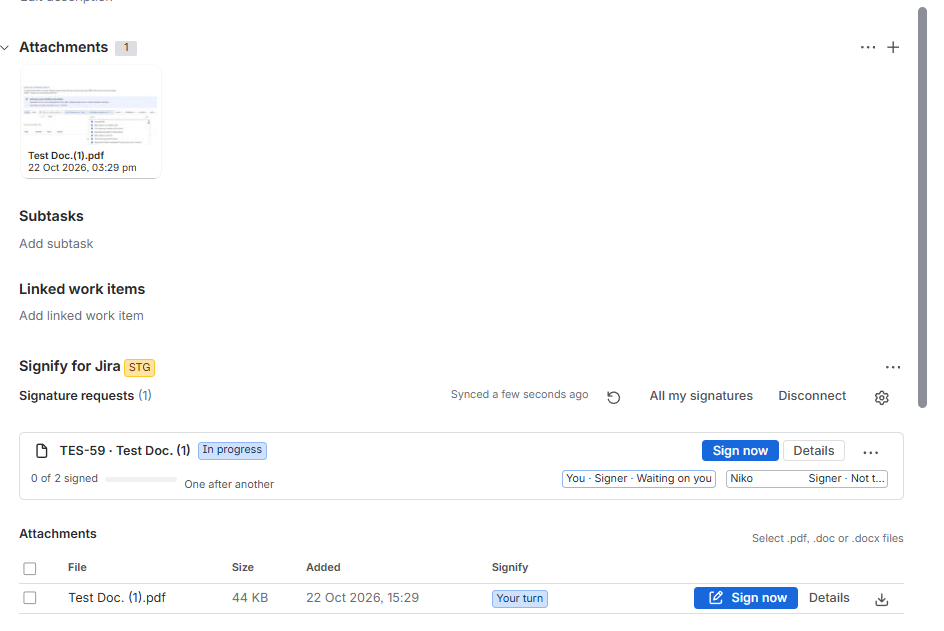
If you specify more than one user as a recipient, you can track the corresponding progress in the work item. You can also sign a document directly from the work item if you are listed as one of its recipients. To do so click “Sign now” button
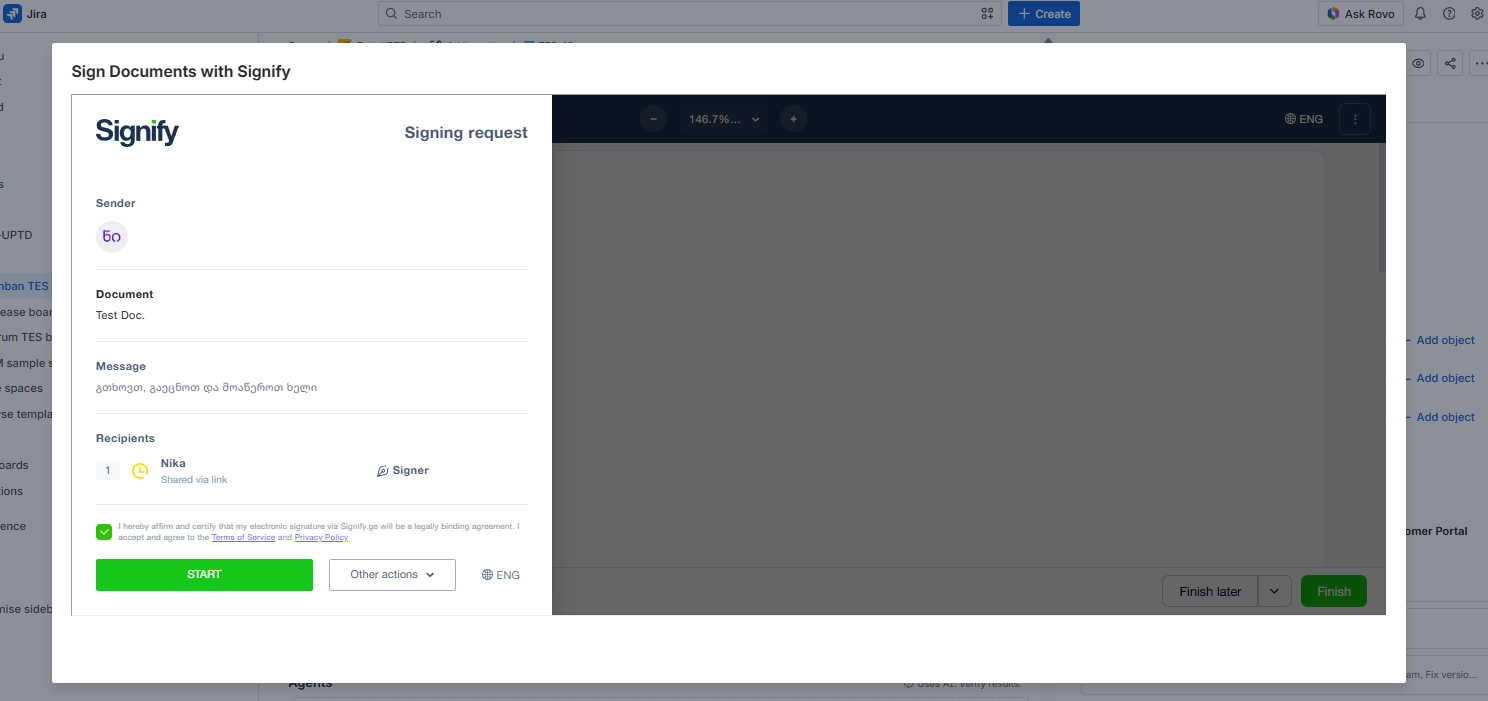
You will be navigated to “ Signify Signing request “ popup . Here you can see:
- Sender
- Document Name
- Recipients
Agree to the “Terms” and click “START” and you will be navigated to “ Place Signature “ popup:
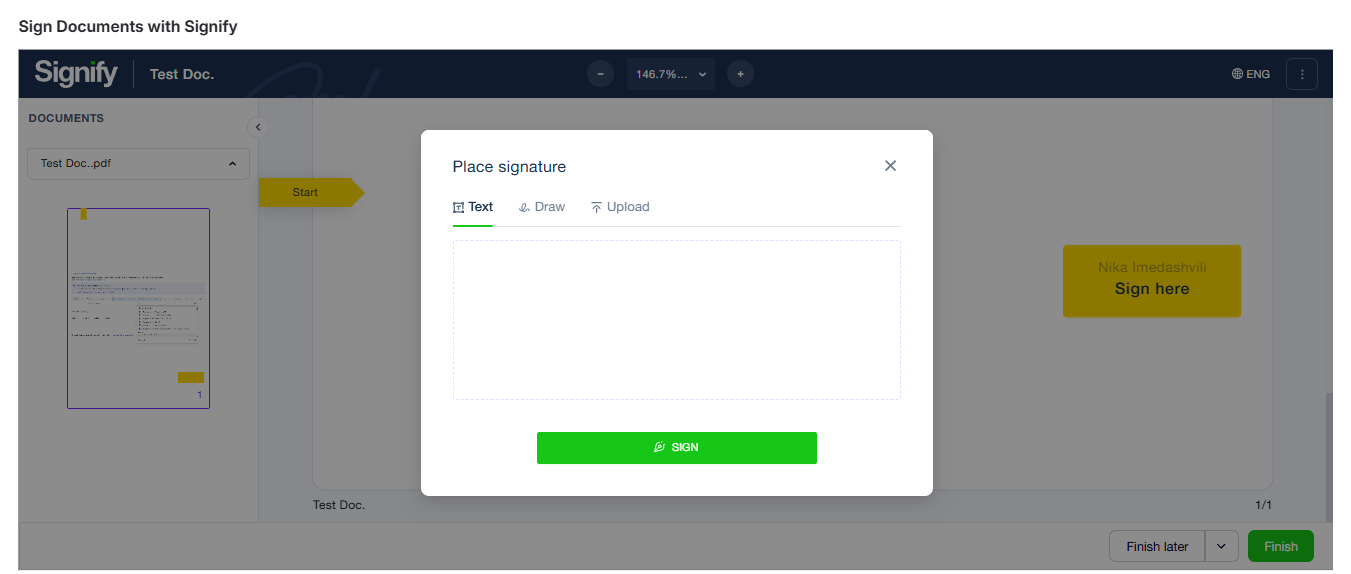
After opening the “Place Signature” popup, you can text, draw, or upload your signature, then click the “sign” button:
Once the all signatures are done, you can see signed document with the info:
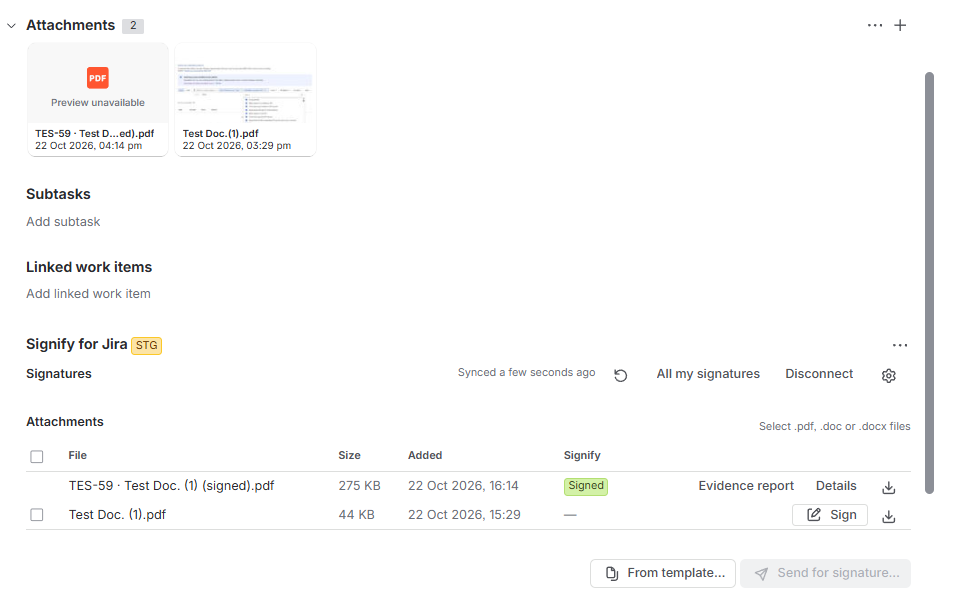
Document Name
Size
Dates
Signify Status
Actions
Download
Details
- Signer(s)
- Details
- File
Evidence report
Once you sign the document, “Signify” will notify you by email that the document is ready.
Signature Process By Template
To send a preconfigured template for signing directly from a work item, you must first configure the template in the Signify platform and then sync it with the Signify for Jira app.
For instructions on how to sync templates, see the documentation here.
Once the template is configured and synced, click the From Template button. The corresponding pop-up window will open:
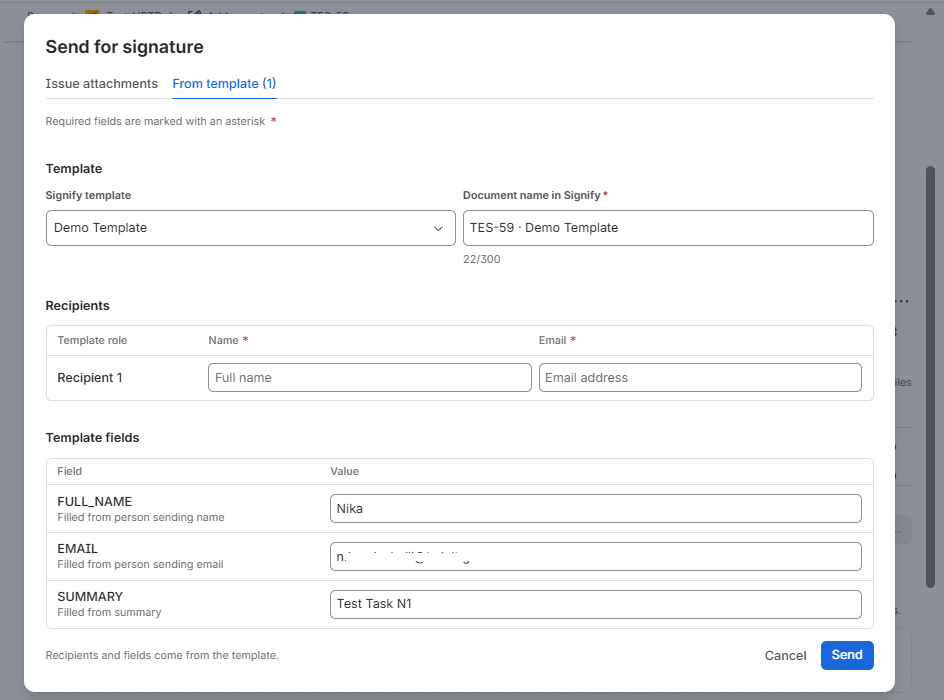
Here you can see the all relevant fields and the already mapped fileds which you have configured in the app settings. Choose the relevant recipients and click “Send” button.
Once you send the document, “Signify” will notify the recipient by email that the document is ready to sign.